How I Turned Linux Into My Ultimate Productivity Machine
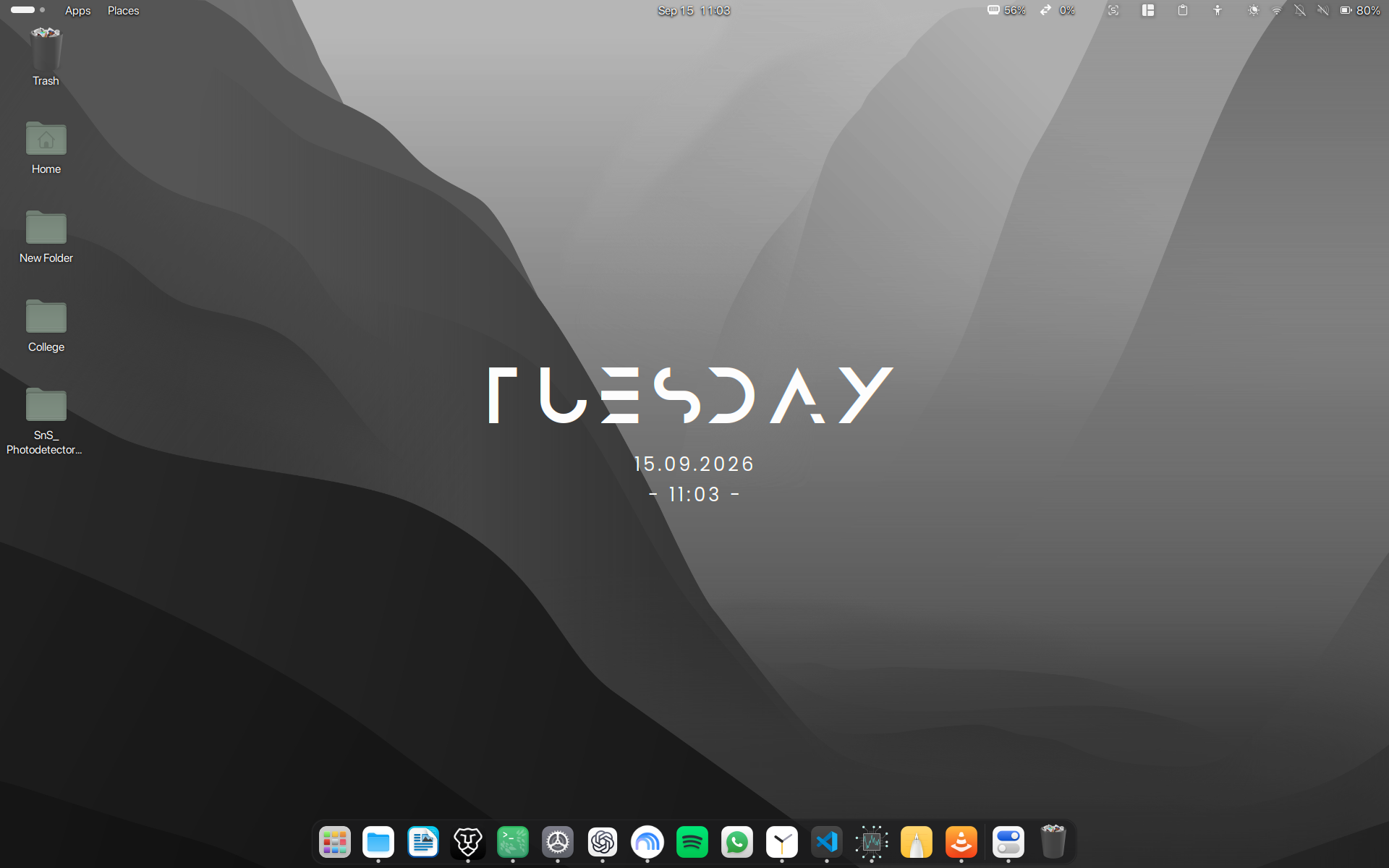
I wanted my Linux desktop to feel clean, fast, and polished enough that I wouldn't miss the little things I liked about macOS — while still keeping the flexibility and control that Linux gives me.
The result is a minimal GNOME desktop with a macOS-inspired look, a floating dock, a clean top bar, smart window tiling, smooth animations, and a few memory tweaks that make the system feel responsive even when I'm doing a lot at once.
The important part: you don't need to understand every GNOME setting to reproduce it.
I've put the configuration into a small setup script, so most of the customization is simply:
chmod +x ~/setup.sh
~/setup.sh
If you're new to Linux, think of setup.sh as a little installer that tells Linux which settings to change for you.
The 2.5-Second Desktop Walkthrough
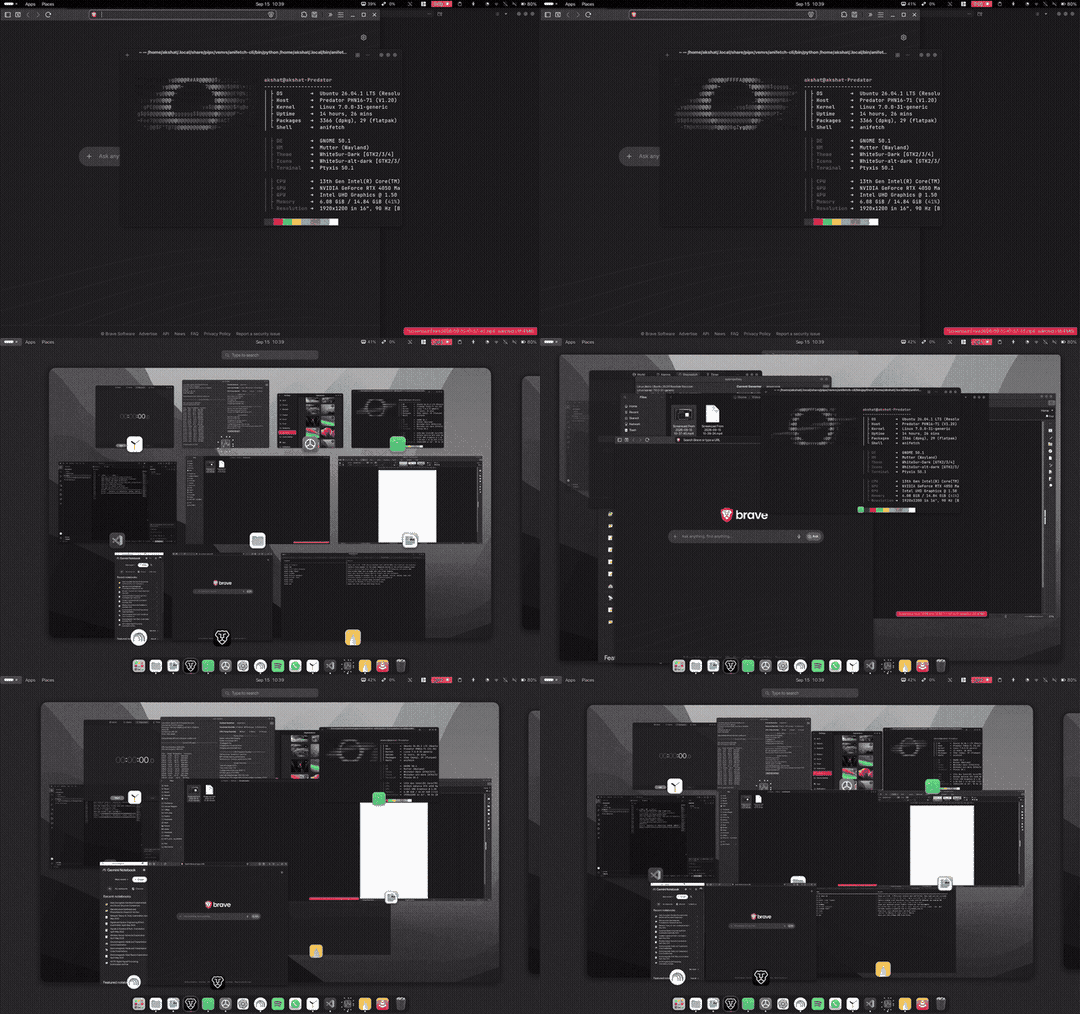
What the setup actually changes
1. A cleaner GNOME desktop
I use GNOME as the base because it is simple and distraction-free. I changed the appearance to a dark, macOS-inspired setup with:
- WhiteSur-style theme: Dark, polished aesthetic.
modern-repackicons: Dark mode icons with consistent app language.- SF Pro & JetBrains Mono typography: Crisp readability.
- Larger, easier-to-read text: High-DPI text scaling at 1.2.
- Dark Monterey wallpaper: Subtle abstract waves.
- Minimal window controls: Clean
:minimize,maximize,closelayout.
2. A floating dock
Instead of having a large permanent panel at the bottom, I use a small floating dock with Dash to Dock. It stays out of the way until I need it, while still giving me quick access to frequently used applications. The dock also shows running applications with small indicators, so I can immediately see what's open.
3. A useful top bar
I wanted the top bar to show information that I actually care about instead of filling it with random indicators. So mine has:
- Apps & Places menu: Compact navigation instead of full-screen search.
- RAM & Swap usage: Real-time hardware telemetry.
- Centered date/time: Clean numeric format.
- Transparent appearance: Blends into the wallpaper seamlessly via
dynamic-transparent-top-bar.
4. Better window management
This is probably the biggest productivity improvement. I use Tiling Shell to quickly arrange windows. Instead of manually resizing windows, I can snap them into layouts and keep everything organized with 4px clean gaps.
5. Smoother animations (Genie Lamp Effect)
I like having animations, but they shouldn't slow me down. The setup uses Compiz Alike Magic Lamp Effect to give minimized windows a smooth "genie" style animation:

Making Linux handle memory better
This is the part that's useful even if you don't care about the visual customization. I use ZRAM.
What is ZRAM?
Normally, when Linux runs low on RAM, it moves memory to your SSD. That works, but SSD storage is much slower than RAM. ZRAM creates a compressed block of memory in RAM using lz4. Instead of immediately pushing everything to the SSD, Linux keeps more of the workload in compressed memory.
Ubuntu / Debian Installation
sudo apt update && sudo apt install zram-tools
Edit /etc/default/zramswap:
ALGO=lz4
PERCENT=50
PRIORITY=100
Fedora Setup
Fedora uses systemd-zram-generator:
sudo dnf install zram-generator
In /etc/systemd/zram-generator.conf:
[zram0]
zram-size = ram / 2
compression-algorithm = lz4
One small swap adjustment (vm.swappiness = 25)
I also set Linux's swappiness to 25. This makes the system less eager to swap compared with the default behaviour.
echo "vm.swappiness=25" | sudo tee /etc/sysctl.d/99-swappiness.conf
sudo sysctl --system
The Wallpaper
I'm using the 4K dark version of the macOS Monterey wallpaper from the WhiteSur project:
The GNOME Extensions I Use
- Tiling Shell — window tiling
- Modern Clock — centered desktop clock
- System Monitor — RAM/swap information
- Dash to Dock — floating dock
- Compiz Alike Magic Lamp Effect — smooth minimization
- Apps Menu / Places Menu — compact navigation
Replicate This Setup on GitHub
Grab the full repository with all scripts, icons, and configuration files ready to clone and run.
👉 Related Reading: ZenGram: Distraction-Free Instagram for Creators